MOOD IN CASE / TRAVEL COLLAGES
Can You Get a Travel Collage Phone Case Without Uploading Photos?
Published November 12, 2026 · Mood In Case editorial
Yes. The two Mood In Case travel collage cases below already have artwork. On either product page, choose your phone model and an available color option. You do not need to submit your own travel photos to order the design shown. Use the custom photo editor if you want an image from your own trip on the case.
See two exact catalog options →See what is already on the two catalog designs
The Retro Travel Ephemera catalog image shows a collage built around Venezuela references, including flag colors and ticket- and label-like graphics. Choose this listing if you like the place references already shown. The image can help you recognize the artwork you want. It does not tell you which phone shell to select for your device.
The Vintage Postage Stamp catalog image shows a grid of stamp-like illustrations, including landmarks and other travel motifs. It works as a travel-themed design without asking the buyer for an itinerary, a list of destinations or a set of photos. The marks in the picture are part of the pictured artwork. There is no field in the ready-made selector to replace them with stamps from your own trip.
Both example links open the Transparent option for iPhone 17 Pro. Both showed $9.90 USD when checked. The product names identify the artwork, while the selected model identifies the shell you intend to order. Use the photos to choose the design and read the selector to verify the option. The phone photographed can differ from the model selected.
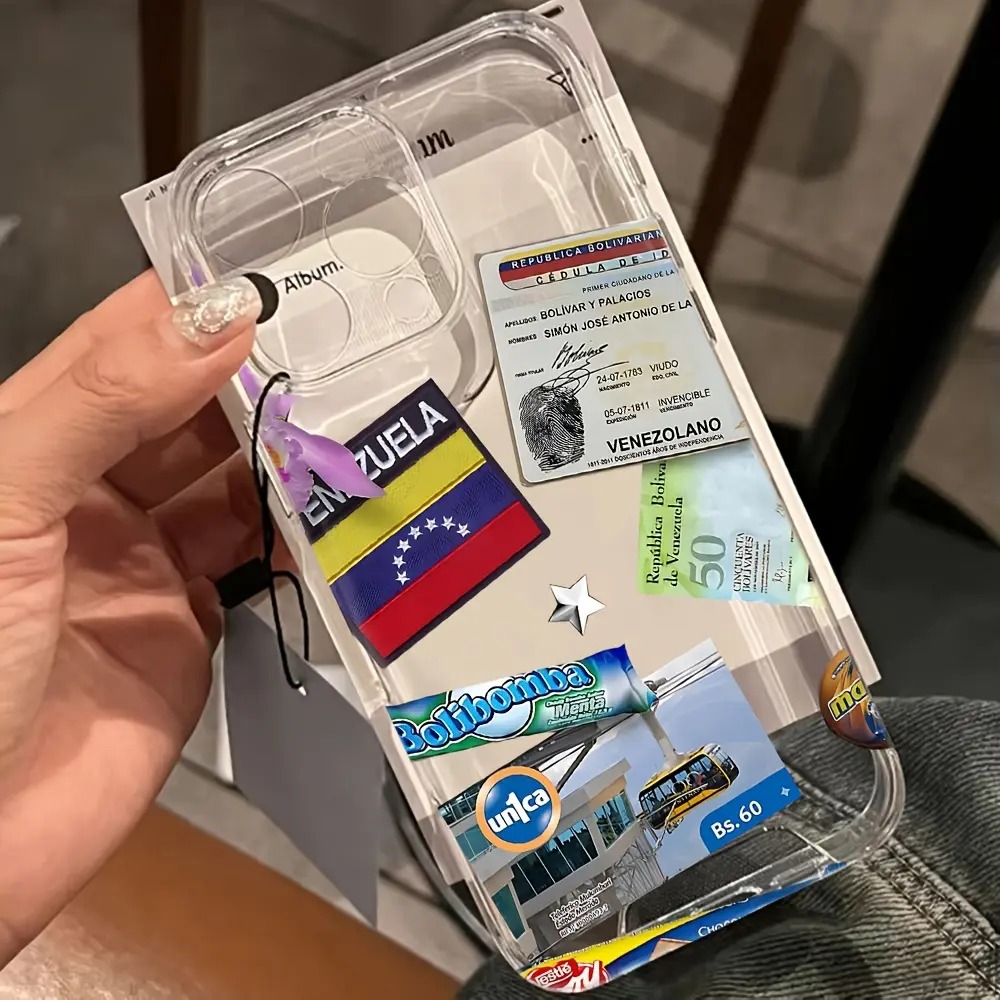
Representative catalog photograph. Check the selected model and color on the product page.
Review Retro Travel Ephemera exact option →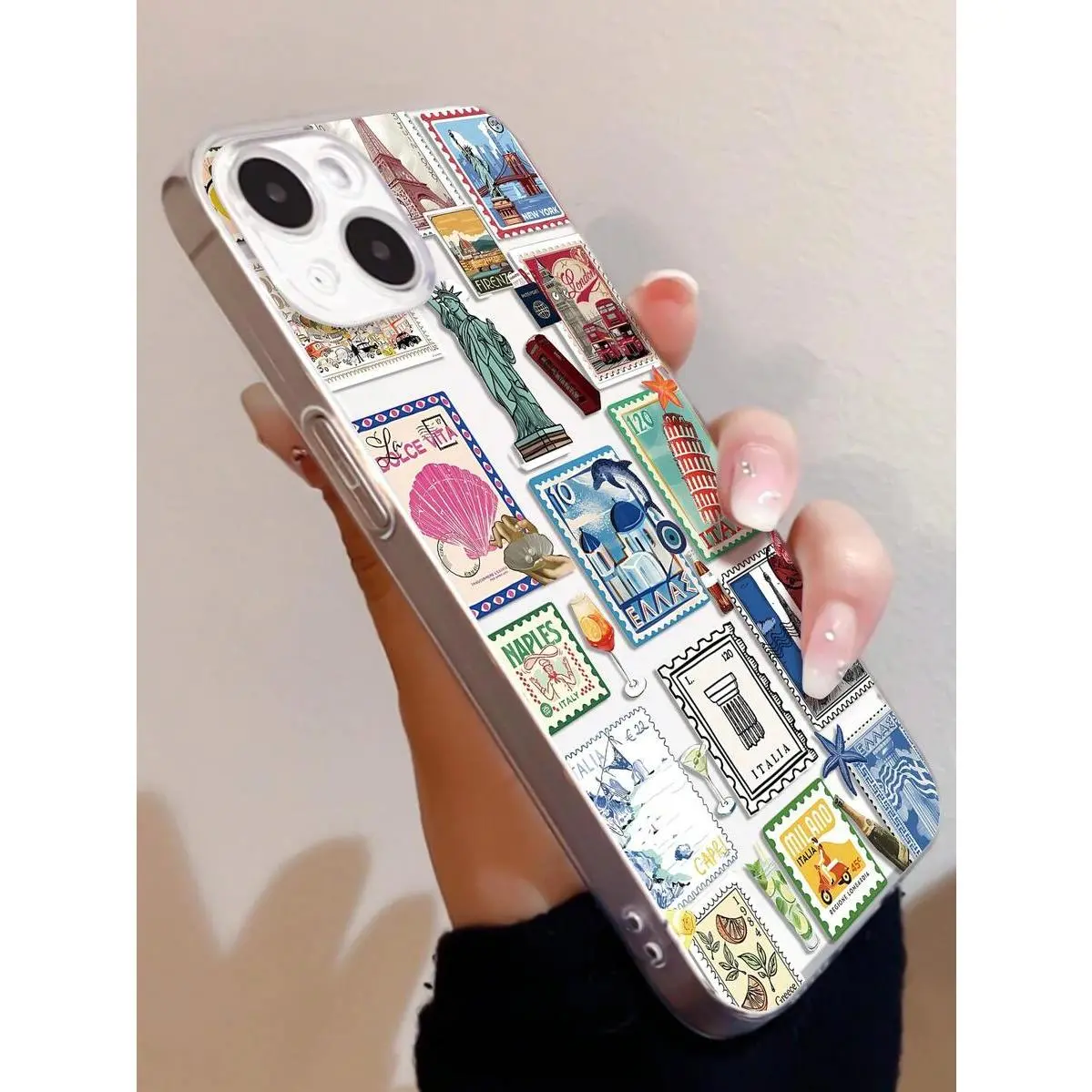
Representative catalog photograph. Check the selected model and color on the product page.
Review Vintage Postage Stamp exact option →Choose ready-made when you like the pictured artwork
A ready-made travel collage is a good fit if you want the scrapbook look and are happy with the images, places and lettering in the product photo. You can open the item page and review the available options without preparing an image file. It also works when you are buying for someone else and want to keep their personal photos out of the decision.
Decide whether any specific reference is essential to the gift. A person who wants a case featuring their own destination may care about the country name or a landmark more than the general travel theme. Read the picture at a useful size and check what is actually visible. If the ready-made artwork already has the reference they want, the ready-made product page is the shorter route. If they want a different reference or their own photograph, choose the custom route.
Some words are small in a collage. If the design needs to show one specific destination clearly, look for it in the product gallery before you buy. If the photo does not let you read it, share the product link and ask Customer Care about the exact artwork. Do not use the product title alone to decide that a particular place or label is part of the design.
Choose the photo editor for a picture from your own trip
Use the Mood In Case custom photo editor if you want your own trip photo or a collage you made to appear on the case. Start with a file you can use, select the device and check the preview for that model. The examples in this guide are separate catalog products. Choosing a size or color in either ready-made listing does not open an editor for the pictured collage.
If you want your own scrapbook look, decide which item matters most before you prepare a collage. A single landmark, a photo with a friend or a favorite handwritten caption can give you a clear point to keep visible. Review the crop around the camera area and the edges in the editor. Look over the preview before moving on, especially if a date or place name sits close to a corner.
If you are undecided, start by asking whose picture you want on the back. If it is the artwork you see on the listing, use that listing. If it is a photo or layout you already have, start with the editor. The two routes have their own options and prices. Read the current details on the route you choose before paying.
Check the exact selection before paying
Read the name of the phone in its settings, including words such as Pro, Plus or Pro Max. Then select that exact name on the page. These two links open iPhone 17 Pro. If you use a different phone, choose the correct model where available and confirm the selected color again. Use the catalog image for the artwork and the option summary for the model.
Once you have the design, model and color you want, Buy now takes the current selection to checkout. If you are comparing two ready-made options, you can keep them in your bag and remove the one you do not want. Check the item name, model, color, quantity and final price in the order summary. If the item details differ from what you expected, go back to the product or the editor to correct the choice before paying.
If the case is a gift, confirm the full phone model with the recipient before choosing the option. They do not need to send any trip photos for either of these two catalog designs.
Quick answers
Do I have to upload a photo for the two cases shown here?
No. Both linked catalog products already have pictured travel collage artwork. Choose the exact phone model and an available color.
Can I replace one of the stamps in the ready-made design?
The linked product selector offers model and color choices. Use the custom photo editor with your own artwork if you want a different destination, stamp or image.
Do both example links select the same phone model?
Yes. Both open iPhone 17 Pro with Transparent selected. Change the model where offered if the name on your device differs.
Want to use a photo from your own trip?
Start with your own image and review the preview for the exact phone model before ordering.
Open the custom photo editor →Contact Mood In Case Customer Care · Choose a source photo · More buying guides