MOOD IN CASE / CHECK YOUR BAG
Wrong Phone Model in Your Bag? How to Change It Before Checkout
Published November 7, 2026 · Mood In Case editorial
Remove the line with the wrong model from your Mood In Case bag, reopen the product, and choose the full model name before adding it again. Check the bag for the corrected line and the intended quantity. Changing a selector on the product page alone leaves the earlier bag line in place.
See two exact catalog options →Read the bag line before opening the product again
Start by comparing the model printed on the bag line with the model name on your phone. The difference can be one word. An iPhone 17 Pro and an iPhone 17 Pro Max have separate options in the store, even when both options show the same photo. Use the name on the device or its original box. If you are shopping for someone else, ask for the full model name so you can make the correction once.
Read the design and color as well. Two lines can show the same artwork with different model names, and that may be intentional if you are buying for two people. Find the one line that needs changing. The bag lists the color, phone model, quantity and SKU for each item. Those details give you a more reliable check than the thumbnail by itself.
Remove the old selection and add the corrected one
Use Remove on the line that lists the wrong model. Keep any other cases you still want. On the product page, choose the color and then read the full model shown in the selector. Pick the quantity after you finish choosing the options. The product page resets the quantity when you change model or color, so if you meant to order two, choose two again after selecting the corrected variant.
Choose Add to bag, then open the bag to confirm the result. The line should list the model you need and the color you intended. If you already added the corrected option before removing the old one, compare both lines and remove the wrong one. If the correct line now has an extra unit, use its quantity selector to bring it back to the number you meant to buy.
If the bag still shows the old line after you try to remove it, look for a message about browser storage. The bag can report when it could not save your change. Check the line again after following the message, especially if you have the bag open in more than one tab. For a single correctly selected case, you can use the product’s Buy now entry and verify the model and quantity in its order summary before paying. If you want several items together, wait until the bag itself shows the intended set.
Use two exact links to see what changes
The Purple Butterfly option below opens with Transparent and iPhone 17 Pro selected. The Smoky Black Rose option opens with Black and iPhone 17 Pro Max selected. Each option was listed at $9.90 USD when checked. The two links are examples of what a complete selection looks like. Choose your actual phone model on the product page if it differs from the example.
A picture can help you recognize the purple butterflies or dark rose design. The selected model and color identify the item that goes into the bag. Look for both values near the purchase buttons before adding a case. If the phone model you need is unavailable for a particular color, check the other available colors or another design. Ordering the nearest model name leaves you with the same fit problem you were trying to avoid.
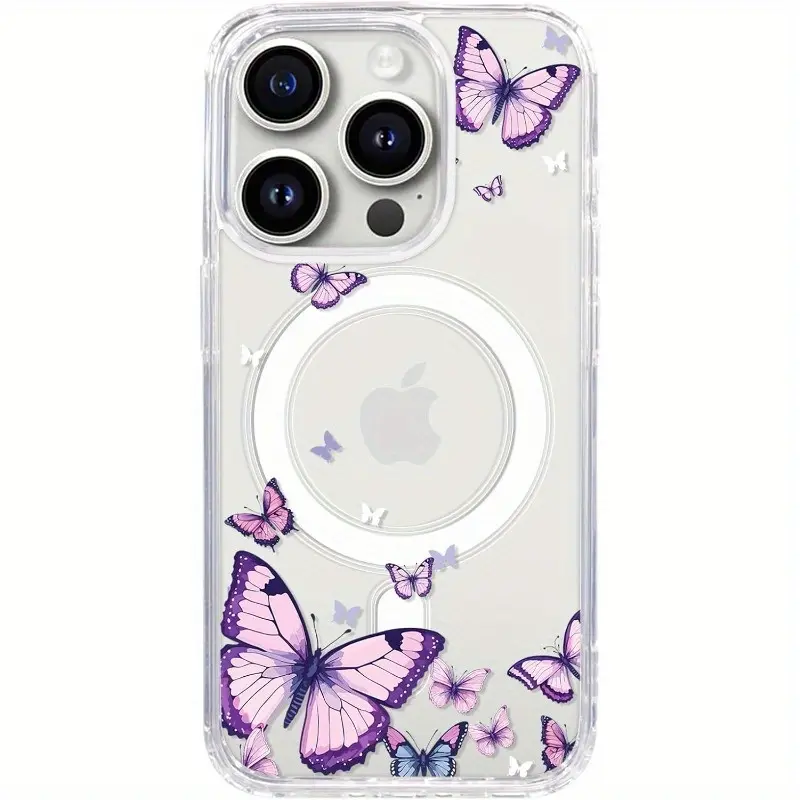
Representative catalog photograph. Check the selected model and color on the product page.
Review Purple Butterfly exact option →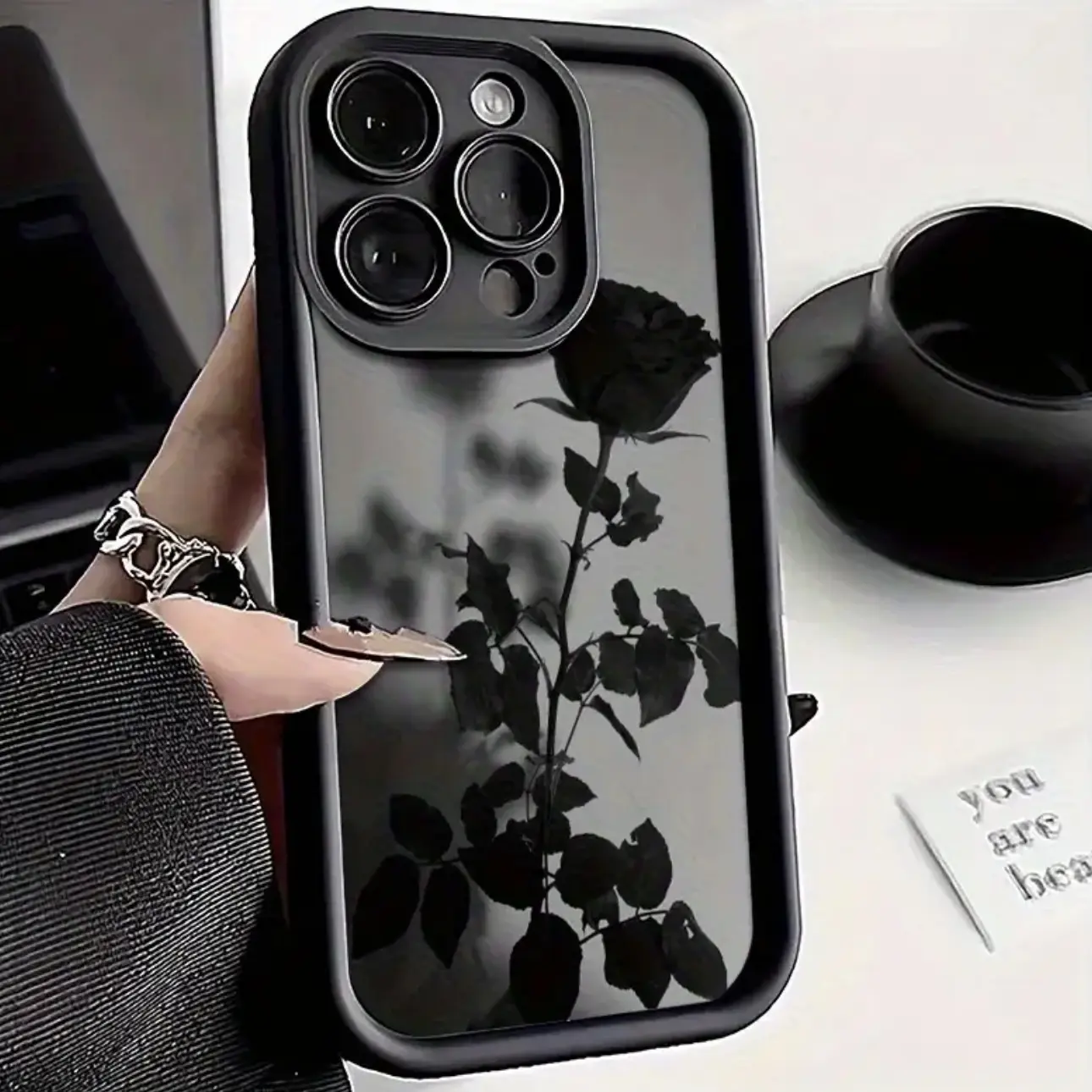
Representative catalog photograph. Check the selected model and color on the product page.
Review Smoky Black Rose exact option →Choose the checkout entry that matches what you want to buy
For several items, use the bag to review the intended lines together and then continue to secure checkout. Check every model and quantity in the order summary. For a single case, Buy now on the product page takes the current selection directly to checkout. It leaves your saved bag in place. If you switch back to buying from the bag later, review it separately for any old selection still there.
If a checkout page was already open when you fixed the bag, go back through the entry you intend to use and read the order summary again before paying. A checkout that is checking an earlier payment may show a different selection from your current bag. If you already attempted payment and are unsure whether it went through, check the order status or ask Customer Care before starting a second payment.
Do one final check before you pay
Read the order summary line by line. For each case, say the design name, color, complete phone model and quantity in that order. If two cases are gifts for different phones, check each line against the corresponding recipient’s model. Finish by reviewing the current total and the payment method shown on your checkout page. That last read takes only a moment and catches mistakes that a product picture cannot show.
If you spot a mismatch after paying, contact Customer Care with the order reference and the model you intended to buy. The bag steps in this guide apply to your selection before payment. For an existing order, ask support what can be done for that order and wait for confirmation before assuming the selected case has changed.
Quick answers
Does changing the product selector update a case already in my bag?
The selector changes the option you are looking at. To replace a saved option, remove the wrong bag line and add the correct one, then check the model and quantity in the bag.
Why did the corrected option appear as another line?
The bag keeps different model or color combinations separate. Compare the two lines and remove the one you no longer want.
Will Buy now include the other cases in my bag?
Buy now opens checkout for the current product selection. Use the bag checkout entry if you intend to buy its items together.
Check the corrected bag line before checkout
Make sure the design, model, color and quantity match what you meant to buy.
Review your bag →Contact Mood In Case Customer Care · Read about bag availability · More buying guides